
Tap Terminal
Tap Terminal is a compact, portable payment terminal that lets you accept contactless and card payments without needing a separate POS device.
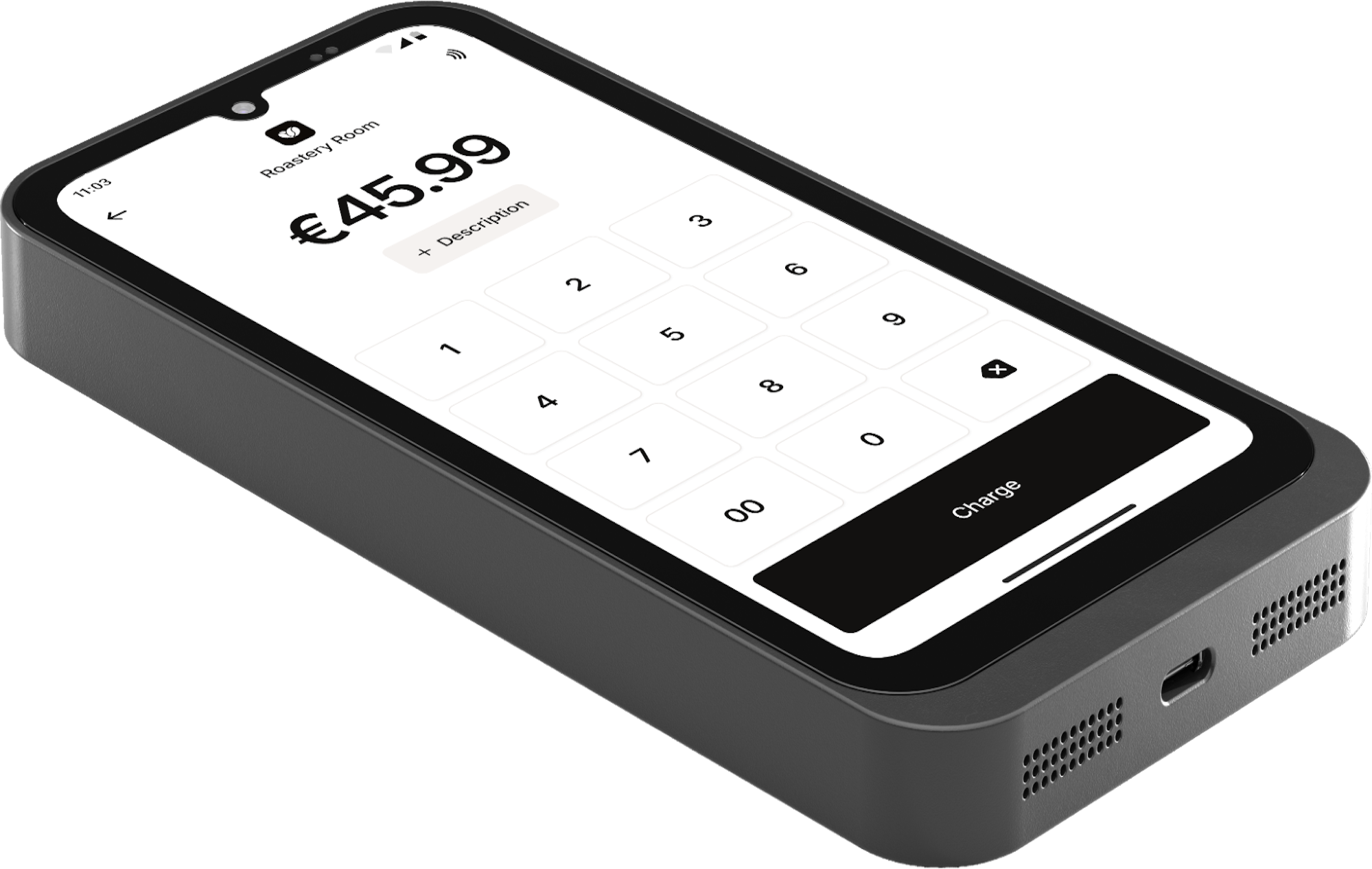
What's in the box
The box comes with the following:
- Tap Terminal
- USB-C cable
- Power adapter
Getting started
- Check that the box has not been opened, inspect the terminal for missing screws, additional wires or labels, holes in the device or anything inserted into or attached to the terminal.
- Compare the serial number on the terminal with the serial number displayed in your Mollie Web App to confirm that you received the right device.
- If present, report any suspected tampering to Mollie Support immediately.
If everything is in order, you can proceed with activating your terminal.
The device arrives pre-configured, so you can start collecting payments as soon as you turn it on and connect it to your Wi-Fi network.
Accessing settings menu
- On the waiting screen, tap the gear icon in the top-right corner.
- Enter your device PIN when prompted to open the Settings menu.
Connectivity and network
The Tap Terminal connects to the internet over Wi-Fi or 4G.
Using Wi-Fi
- Open Settings.
- Go to Device settings > Wi-Fi settings.
- Select your preferred network.
- Enter the network password when prompted and click Connect.
Your Wi-Fi network must be password-protected and must not require a browser login to connect. The terminal supports WPA2 security on both 2.4 GHz and 5 GHz bands.
Using mobile network (4G)
Once the SIM is activated, the terminal automatically connects to the best available mobile network. You do not need to configure anything.
Terminal settings
Screen brightness
- Open the Settings.
- Go to Device settings > Display settings.
- Adjust the screen brightness.
Brightness cannot exceed the screen hardware limit.
Sound and volume
You can adjust the volume in either of these ways:
- Swipe down from the top-right corner of the screen, then use the volume slider in the quick settings panel.
- Open the terminal settings, go to Device settings, then use the volume slider.
This setting controls notification volume - the sound the terminal plays for alerts.
Screen sleep
By default, the terminal dims and goes to sleep after a period of inactivity to save power. When it's asleep, it can look unresponsive to a customer trying to start a payment. Pressing the power button wakes it up and any payment in progress stays active.
If the sleep timer is too short, contact our Support requesting the change, such as a longer timeout or "never," and provide the serial number or terminal ID.
We'll push the change to your terminals in the background, without interrupting any payments in progress.
Setting the screen to stay on continuously can increase battery consumption and screen wear over time.
Managing your terminal
You can manage the Tap Terminal from your Mollie Web App. From there, you can:
- Activate, deactivate, and rename terminals.
- View the transactions per terminal.
- Run end-of-day reports and manage shifts directly on the device.
The terminal supports Dutch, English, French, and German and receives software updates automatically.
Warranty and support
The Tap Terminal comes with a one-year standard warranty. User-caused damage, such as a cracked screen or liquid damage, is not covered. Opening the terminal voids the warranty.
Updated 3 months ago