
Handling payment status
Every possible payment status
Depending on what happens payments go through a number of statuses. For most status changes we will call your webhook. Below an overview of all possible statuses a payment can have.
| Status | Description | Webhook |
|---|---|---|
open | The payment has been created and can still be completed by your customer. | No |
canceled | Your customer has canceled the payment. This is a definitive status. | Yes |
pending | This is a temporary status that can occur when the actual payment process has been started, but it’s not complete yet. Nothing really needs to happen on your end when this status occurs. | Yes |
authorized | If the payment method supports captures, the payment will have this status for as long as new captures can be created. See place a hold for a payment for more details. | Yes |
expired | The payment has expired, e.g. your customer has abandoned the payment. This is a definitive status. Some payment methods like SEPA Bank Transfer have a long expiration window. See below for more details when a payment expires. | Yes |
failed | The payment has failed. This is a definitive status. | Yes |
paid | Your customer successfully completed the payment. This is a definitive status. | Yes |
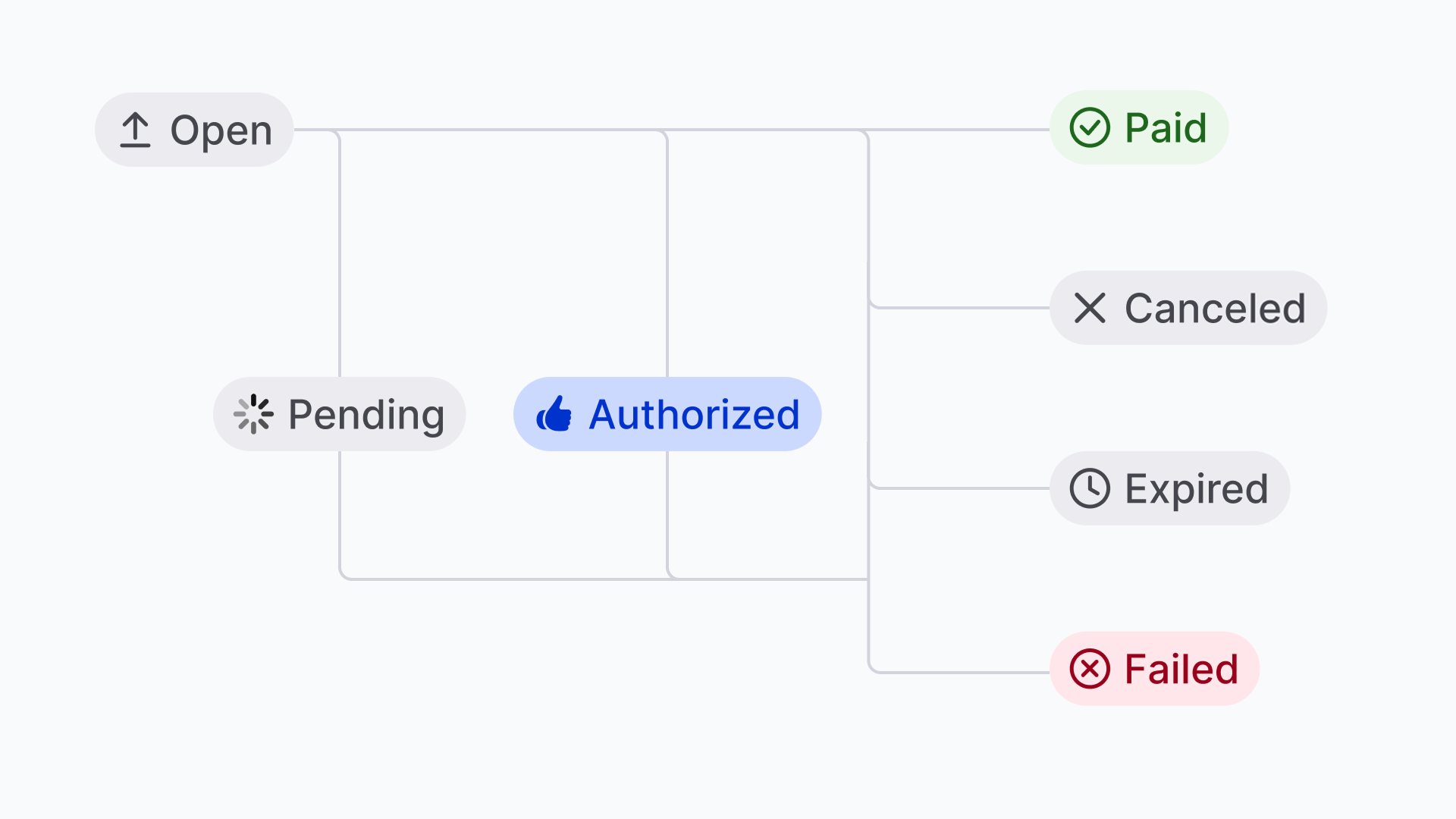
How does one status lead to another?
The below diagram shows when to expect which status.
When does a payment expire?
When your customer doesn’t make an actual payment, the payment will, at some point, expire. After a specific expiry time, an open payment will become expired. This could happen when a customer decides not to make a payment after all and abandons it. The expiry time is different for each payment method.
Expiry times per payment method
| Payment methods | Expiry time |
|---|---|
ideal, paysafecard | 15 minutes |
creditcard | 30 minutes |
mybank, twint | 45 minutes |
bancontact, belfius, kbc, eps, przelewy24 | 1 hour |
vouchers | 2 hours |
klarna, in3 | 48 hours |
paypal | 6 hours |
banktransfer* | 12(+2) days |
(*) Payments made by bank transfer are done manually by your customer. Some days can pass before it becomes clear the payment has been paid. That’s why the payment method banktransfer will by default, not expire until 12 days have passed. One or two days can be added when the 12th day is a Saturday or Sunday.
It is not a good idea to predict payment expiry. Best wait until your webhook is called and fetch the status as usual. This is the most reliable way to keep your system in sync with Mollie, also in the case of expiring payments.
Redirect back to hosted checkout page after failed or canceled attempt
When you create a payment with a single method, your customer will be redirected to your website when the payment is canceled or failed. For all other cases, your customer will be redirected back to Mollie Checkout where they can try again. This also means that the payment will remain in the open state even if an earlier attempt was canceled or failed. This is default behaviour that can not be changed.
Additional domains
You can register additional domains to accept payments through websites and tools other than your main website.
To keep your account secure, Mollie only accepts payments from domains associated with your website profile. Payments from unregistered domains may be blocked.
Mollie screens all additional domains to verify that they match your business and comply with our Terms of Service.
When to add additional domains
Register an additional domain in the following situations:
- External tools and apps: if you use a separate app for bookings or store managemen.
Examples: Shopify, Eventgoose, CRM (customer relationship management) tools. etc - Shop pages: if your checkout runs on a different subdomain.
Examples:shop.yourdomain.com,portal.yourdomain.cometc. - Country-specific websites: if you have different websites for different countries, including top-level domain (TLD).
Examples:.com,.co.uk,.de,.fr,.nletc.
Requirements
All domains added to a website profile must relate to the same business, products or services as your main website. If a domain serves a different type of business or product range, create a new organisation profile instead.
Add additional domains
- Log in to the Mollie Web App.
- Go to Settings > Website profiles.
- Select the website profile you want to update.
- Under Other websites or online presences you sell through, click Add domain.
- Enter the domain and click Continue.
Mollie screens the domain automatically after you submit it. You receive an email if any action is required.
After you submit
Mollie scans the domain against your registered business category. Most domains are approved without follow-ups. If a manual review is needed, it typically takes a few business days.
If Mollie rejects your domain after review, you receive an email with the rejection reason and your next steps.
If a payment is blocked from an unrecognised domain
If a payment comes from a domain that isn't registered to your website profile, Mollie blocks it and creates a task in your Dashboard.
- Log in to your Mollie Web App or Mobile App and go to your tasks.
- Open the Review domain task.
- Answer Is this domain part of your business? by selecting one of the following options:
- Add domain: select this option if the domain belongs to your business. Mollie submits the domain for review, and payments from it resume once it is approved.
- Not part of my business: select this option if you don't recognise the domain. Payments from it stay on hold.
Updated 11 days ago