
PAX A920 Pro terminal
The PAX A920 Pro is a mobile payment terminal for accepting in-person payments across multiple locations or mobile services.
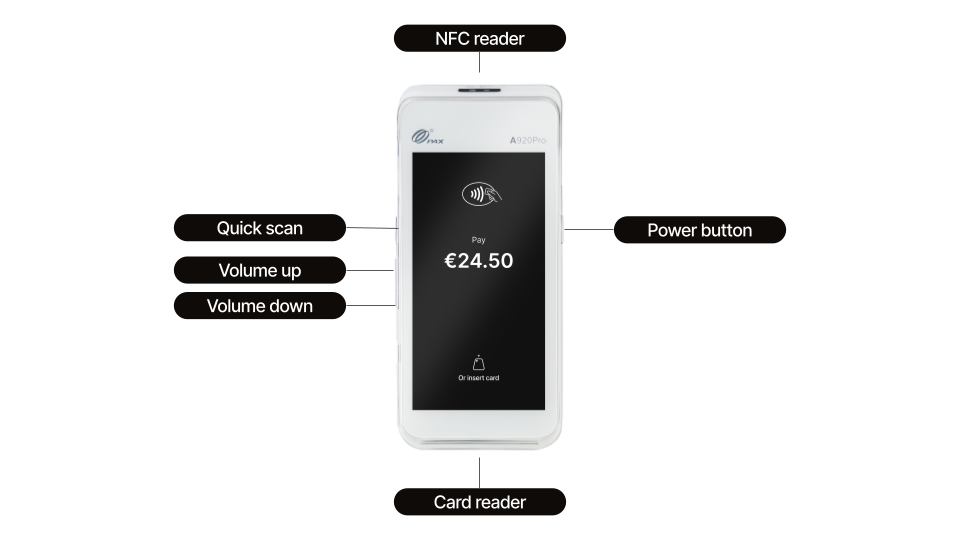
Overview
The PAX A920 Pro is a self-contained device with a built-in thermal receipt printer, touchscreen (supporting colors), Wi-Fi, and 4G connectivity.
The terminal runs on Android and is managed by Mollie's MDM (Mobile Device Management) system, which keeps software up to date automatically and allows it to be managed remotely. It is the most feature-rich terminal in Mollie's portfolio and the recommended choice for merchants who need flexibility across multiple locations or run mobile services.
Hardware specifications
| Specification | Detail |
|---|---|
| Brand | PAX Technology |
| Model | A920 Pro |
| Operating system | Android |
| Android version | — |
| Screen | 5.5” IPS HD touch screen |
| Built-in receipt printer | Thermal printer; paper roll outer diameter: 40mm |
| Connectivity | Wi-Fi (2.4GHz / 5GHz) + 4G LTE (SIM included) |
| Card readers | Contactless (NFC) + Chip & PIN + magnetic stripe |
| Battery | 5150mAh; 3.7V; 1 full business day |
| Ports | USB-C charging port, SIM card slot |
| NFC position | Front-top of device |
| PCI compliance | PCI PTS 6.x |
What's in the box
When your terminal arrives, you'll find:
- PAX A920 Pro terminal (Wi-Fi and 4G)
- Thermal paper roll
- AC power adapter
- Battery
- Cable
- Micro SIM card (if ordered as part of your plan)
Getting started
When you receive your terminal, check for any signs of tampering. Ensure that the box has not been opened and inspect your terminal. Check for missing screws, wires, labels, holes in the device or anything inserted in or attached to any part of the terminal.
Confirm that you have received the right device by comparing the serial number on the terminal to the serial number displayed on your Mollie Web App. If you suspect anything, please report it immediately.
If everything is in order, you can activate your terminal. The device is shipped pre-configured so you can start collecting payments right away. Simply turn it on and connect to your Wi-Fi network.
Accessing settings menu
- On the waiting screen, tap the screen three times.
- If you've enabled Local Sale, tap the shop icon in the top right of your screen, then tap the gear icon in the same corner.
- When prompted, enter your device PIN and the settings menu opens.
Connectivity and network
The A920 Pro connects to the internet via Wi-Fi or 4G. The terminal monthly fee includes (but is not limited to) the usage of mobile data on your terminal.
Using Wi-Fi
- Access your device Settings.
- Select Internet, then Wi-Fi.
- Choose your network from the list.
- Enter your network’s password when prompted and tap Connect.
Your Wi-Fi network must be password-protected and must not require a browser login to connect.
Using mobile network (4G)
To activate mobile connectivity, the terminal needs to connect to a Wi-Fi network at least once during initial setup. If your location has no Wi-Fi, use your phone's mobile hotspot to complete this step.
Going forward, the terminal will connect automatically to the best available mobile network.
Adjusting settings
You can tailor how the A920 Pro behaves from its on-device Settings menu. Some settings you can change yourself and others are managed by Mollie on your behalf.
Device language
- Access your device Settings.
- Tap Language.
- Select your preferred language.
Screen brightness
Swipe down from the top-right corner of the screen (the same gesture you would use on a smartphone), then use the brightness slider in the quick settings panel. Brightness cannot exceed the screen hardware limit.
Sound and volume
To adjust the volume, you can:
- Use the physical volume keys on the left side of the device.
- Swipe down from the top-right corner of the screen, then use the volume slider in the quick settings panel.
This allows you to customize the notification volume, which is the sound the terminal plays for alerts.
If a customer needs help paying, you can turn on the terminal's accessibility features and adjust the volume and other settings to assist them.
Screen sleep
By default, the terminal dims and goes to sleep after a period of inactivity to save power. When it's asleep, it can look unresponsive to a customer trying to start a payment. Pressing the power button wakes it up and any payment in progress stays active.
If the sleep timer is too short, contact our Support requesting the change, such as a longer timeout or "never," and provide the serial number or terminal ID.
We'll push the change to your terminals in the background, without interrupting any payments in progress.
Setting the screen to stay on continuously can increase battery consumption and screen wear over time.
Changing till roll
- Turn the terminal face down and grip the lid release lever.
- Pull the lid away from the terminal.
- Remove the spent roll (if applicable) and insert a new one. Make sure the paper feeds up from behind the roll, not over the top.
- Pull a few centimetres of paper out before closing the lid. Tear off any excess.
You can test the paper feed by printing a report or reprinting a receipt.
Till roll refills are available from kassarollen.nl and similar suppliers.
Warranty and support
The A920 Pro comes with a one-year standard warranty. Damage caused by the user, such as a cracked screen or liquid damage, is not covered. Opening the terminal voids the warranty; swapping the battery does not.
Updated 2 months ago