
PAX IM30 terminal
PAX IM30 terminal is a portable, always-connected device designed for busy environments and perfect for unattended payments.
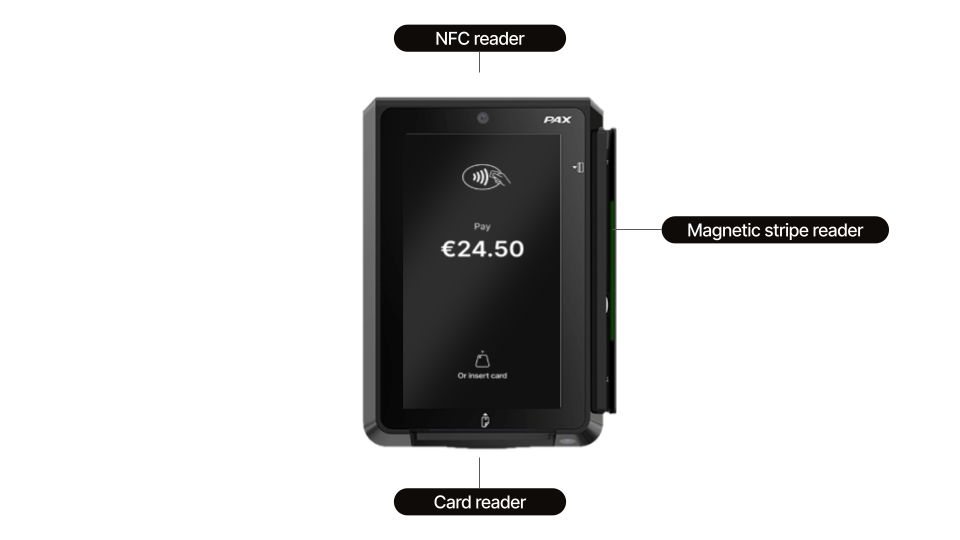
Getting started
When you receive your terminal, check for any signs of tampering. Ensure that the box has not been opened and inspect your terminal. Check for missing screws, wires, labels, holes in the device or anything inserted in or attached to any part of the terminal.
Confirm that you have received the right device by comparing the serial number on the terminal to the serial number displayed on your Mollie Web App. If you suspect anything, please report it immediately.
If everything is in order, you can activate your terminal. The device is shipped pre-configured so you can start collecting payments right away. Simply turn it on and connect to your Wi-Fi network.
Mounting terminal
The IM30 fixes into a mounting plate using the supplied bracket and fixings:
- Measure the thickness of the mounting plate.
- Line the mounting bracket up with the four stud bolts on the back of the mounting plate, then secure it with the four M4 nuts.
- Slide the IM30 into the mounting plate so the back of the device sits securely inside the bracket.
- Secure the IM30 to the bracket with the four M4 screws.
For a plate 4 mm thick or less, tighten the screws to a torque of 0.6 to 0.8 Nm.
For a thicker plate, use longer M4 screws with a thread length of the plate thickness plus 10 to 14 mm.
For an unattended installation, mount the terminal between 800 mm and 1100 mm from the ground, with at least 450 mm of horizontal clearance.
Installing SIM / SAM cards
Some IM30 configurations take a SIM card in the 4G network module or SAM cards for payment processing. Power off the terminal before you install or remove either, then power it back on once you're done.
- SIM card: unscrew and remove the 4G network module to reveal the SIM slot on its back side. Push the card in with the contacts facing up and the clipped corner towards the module.
- SAM cards: two dedicated SAM slots sit behind the 4G module or back cover. Slide the mount to OPEN, insert the card with its contacts facing the terminal and the clipped corner to the upper left, then slide the mount to LOCK.
Accessing settings menu
-
On the waiting screen, tap the screen three times.
-
If you've enabled Local Sale, tap the shop icon in the top right of your screen, then tap the gear icon in the same corner.
-
When prompted, enter your device PIN and the settings menu opens.
Connectivity and network
The IM30 connects to the internet over Wi-Fi or Ethernet. For an unattended setup, a wired ethernet connection is the most reliable choice, since it keeps the terminal online without depending on wireless signal strength.
Connect the network cable to the terminal before you power it on, or set up Wi-Fi from the terminal's network settings once it's running.
The IM30 does not support cellular (4G) connectivity.
Turning ethernet on / off
- Access your device Settings.
- Select Internet.
- Tick or untick the box for the Ethernet active line.
Using Wi-Fi
- Access your device Settings.
- Select Internet, then Wi-Fi.
- Choose your network from the list.
- Enter your network’s password when prompted and tap Connect.
Your Wi-Fi network must be password-protected and must not require a browser login to connect.
Adjusting settings
You can configure IM30 from its on-device settings menu.
Some settings you can change yourself and others are managed by Mollie on your behalf.
Device language
- Access your device Settings.
- Tap Language.
- Select your preferred language.
Screen brightness
Swipe down from the top-right corner of the screen (the same gesture you would use on a smartphone), then use the brightness slider in the quick settings panel. Brightness can only go as high as the screen hardware allows.
Sound and volume
To adjust the volume, swipe down from the top-right corner of the screen, then use the volume slider in the quick settings panel.
This allows you to customize the notification volume - the sound the terminal plays for alerts.
Screen sleep
By default, the terminal dims and goes to sleep after a period of inactivity to save power. When it's asleep, it can look unresponsive to a customer trying to start a payment. Pressing the power button wakes it up and any payment in progress stays active.
If the sleep timer is too short, contact our Support requesting the change, such as a longer timeout or "never," and provide the serial number or terminal ID.
We'll push the change to your terminals in the background, without interrupting any payments in progress.
Setting the screen to stay on continuously can increase battery consumption and screen wear over time.
Warranty and support
The IM30 comes with a one-year standard warranty. Damage caused by the owner, such as a cracked screen or liquid damage, is not covered. Opening the terminal voids the warranty.
Updated 2 months ago