
Resell pricing
Resell pricing offers SaaS platforms a no-code payment monetization solution, enabling them to generate revenue from payment methods via a resell rate.
With Resell pricing, you can determine the appropriate payment method fees for each processed payment, resulting in more predictable pricing and margins.
Features
Resell pricing offers the following features to effectively manage your online payment rates:
- Intuitive user interface: configure Resell pricing directly in your Mollie Web App, without writing a single line of code.
- Price configuration: set a resell rate per payment method (and sub-type, where applicable), using fixed and/or variable pricing for flexibility. You can also set rates per segment.
- Access management: only user accounts with specific roles can access the Resell pricing page in the Mollie Web App.
Available payment methods
Resell pricing currently supports the following payment methods:
Bancontact, Bacs, BANCOMAT Pay, Belfius Direct Net, BLIK, Credit/Debit cards, EPS, iDEAL, KBC/CBC Payment Button, Multibanco, MyBank, Pay By Bank, PayPal, Point of Sale solution, Przelewy24, Satispay, SEPA Direct Debit, SEPA Bank Transfer, Swish, Trustly and TWINT.
Supported Beta payment methods:
Klarna, Alma, Billie, Riverty, Mobilepay.
Setup
When you first open the Resell pricing dashboard, you will see that no VAT rates are set and our flow will guide you through setting your base VAT rate first. Until you set it, you can not edit your resell rates or create segments.
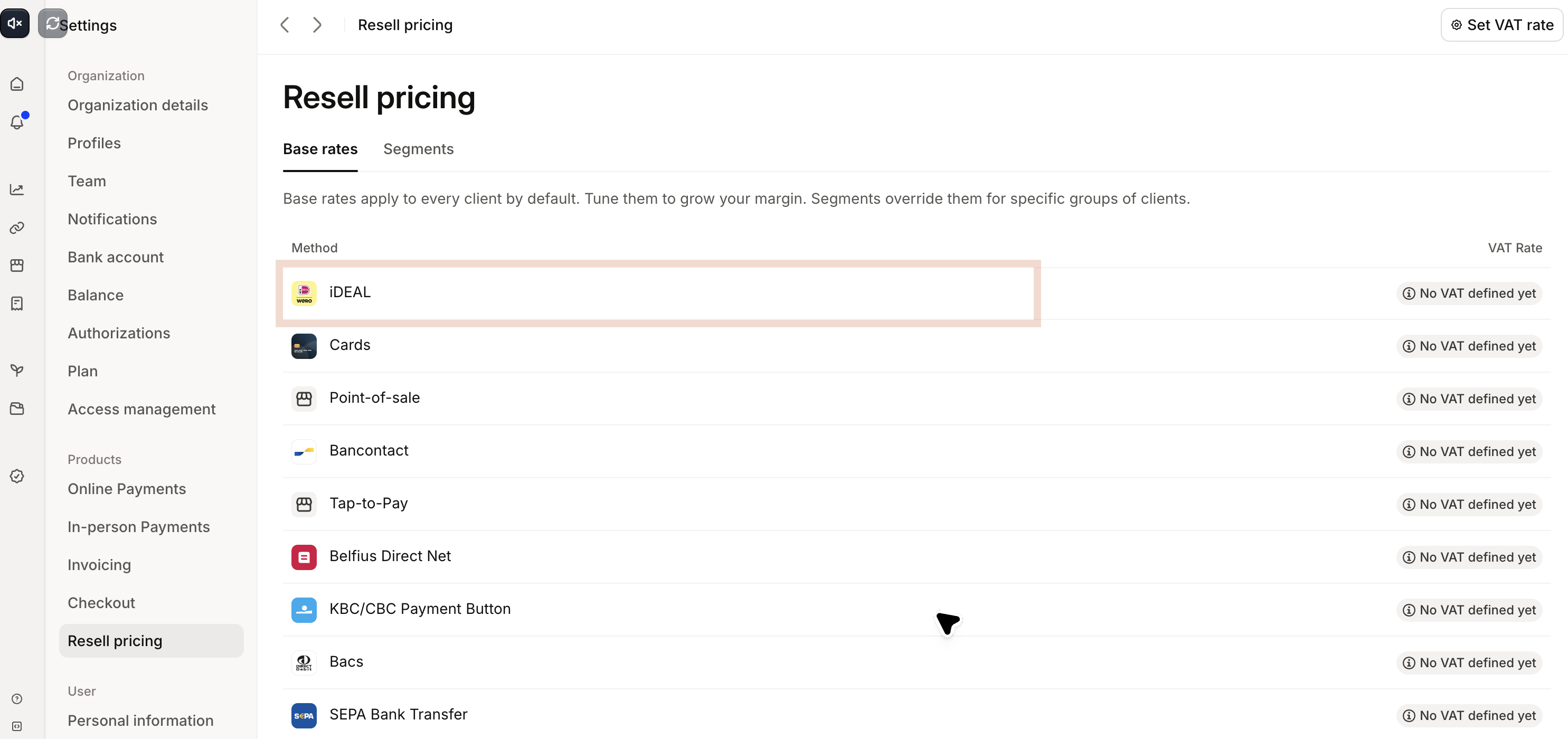
Set your base VAT rate
- Open your Mollie Web App and go to Settings > Products > Resell pricing.
- Follow the flow to set your base VAT rate.
- Review the updated VAT rates. Resell pricing adds the configured VAT on top of the prefilled default rates and updates the final price your client pays.
Resell pricing rounds VAT amounts to two decimals using Banker's rounding- rounding exact halfway values to the nearest even digit.
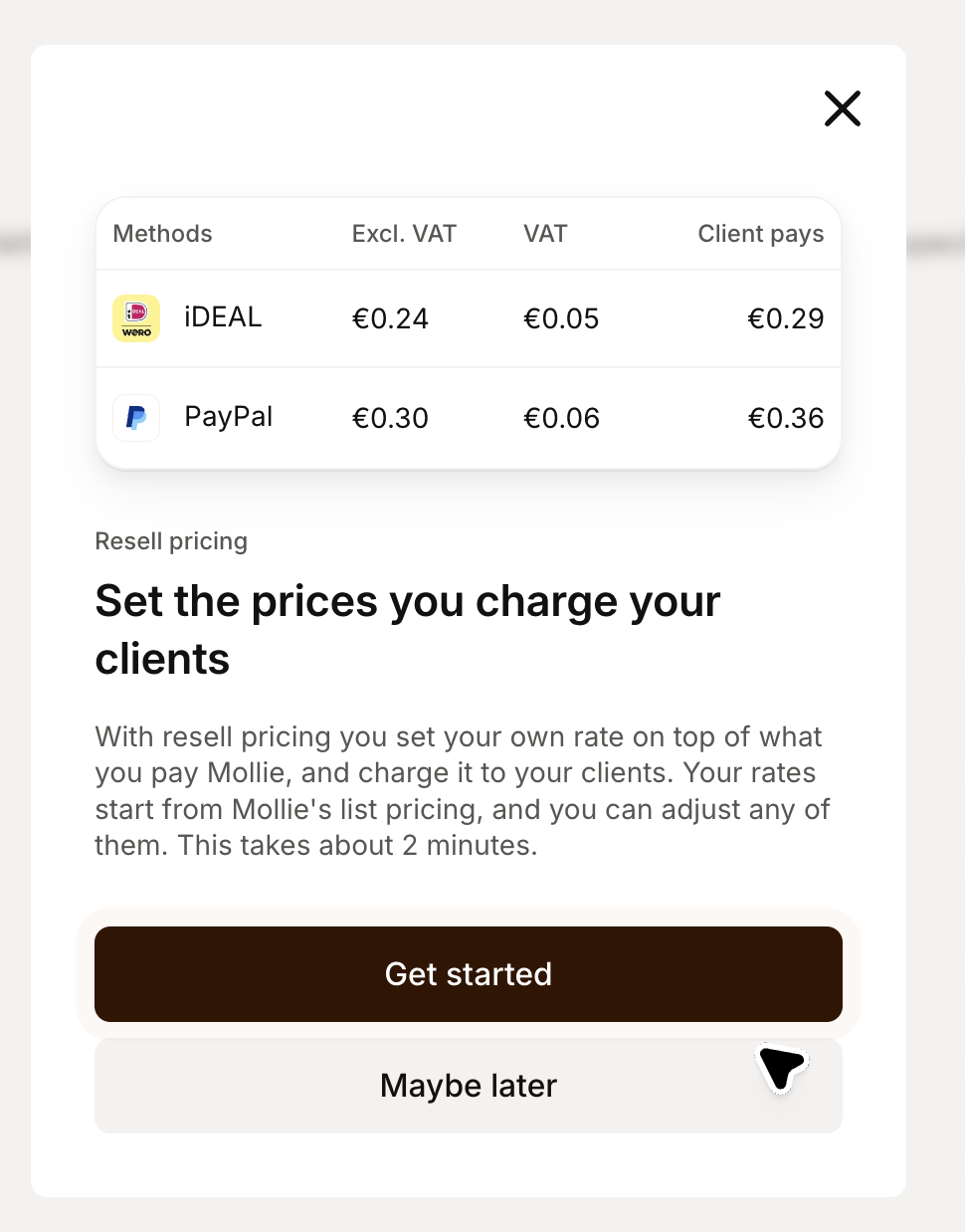
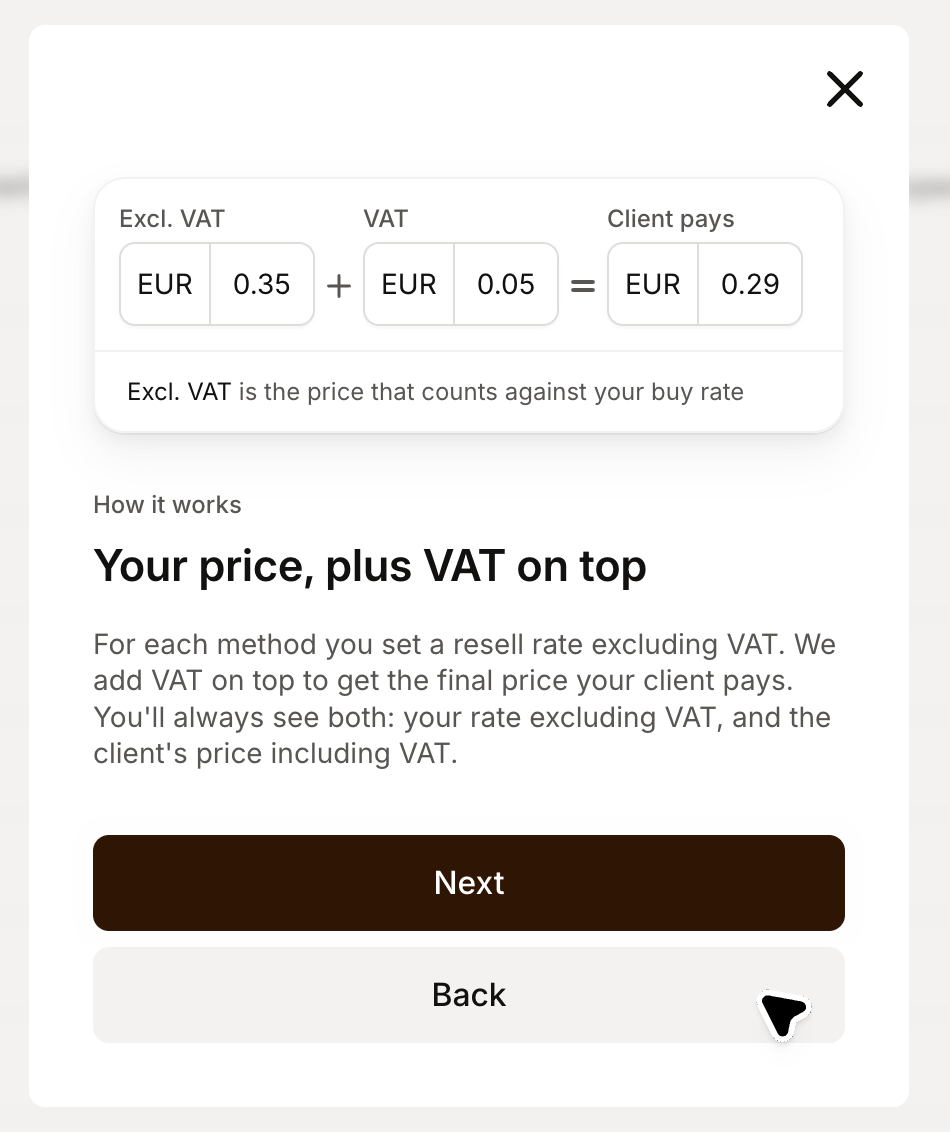
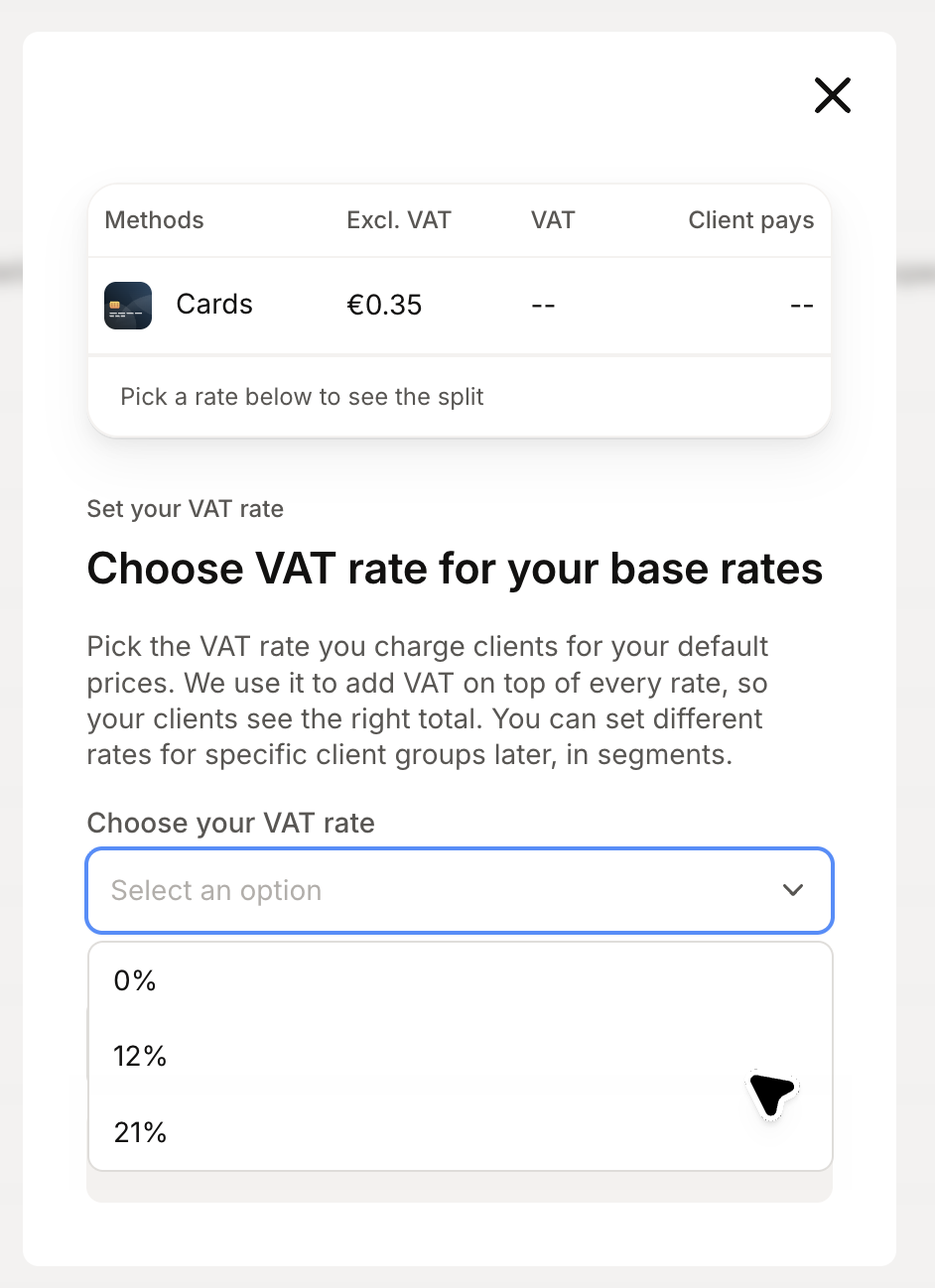
For example, setting a VAT rate of 9% changes the rates as follows:
| Setup | Resell rate (excl. VAT) | VAT amount | Resell rate (incl. VAT) |
|---|---|---|---|
| Before setting the VAT rate | €1.00 + 1.50% | — | €1.00 + 1.50% |
| After setting VAT to 9% | €1.00 + 1.50% | €0.09 + 0.14% | €1.09 + 1.64% |
The VAT amount = VAT-exclusive resell rate multiplied by the VAT rate.
The VAT-inclusive resell rate = the VAT-exclusive resell rate multiplied by (1 + VAT rate), rounded to two decimal places.
Optional: Update or reset individual rates
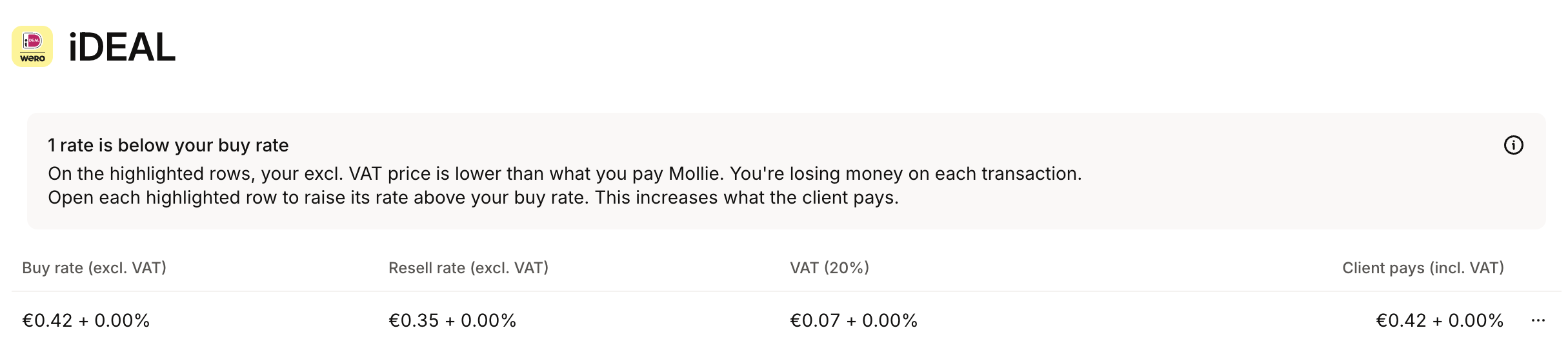
Use the contextual menu (three dots) on the right to update or reset rates one by one. If a VAT-exclusive price is lower than your buy rate (the rate agreed between you and Mollie), Resell pricing highlights it in both the table and the editing modal window.
Optional: Change a VAT rate later
You can update a VAT rate later, for example, to correct an initial value. Resell pricing applies the new VAT rate to the existing VAT-exclusive resell rate and updates the final VAT-inclusive rate charged to your clients.
| Setup | Resell rate (excl. VAT) | VAT amount | Resell rate (incl. VAT) |
|---|---|---|---|
| Before changing VAT | €0.92 + 1.38% | €0.08 + 0.12% | €1.00 + 1.50% |
| After changing VAT to 21% | €0.92 + 1.38% | €0.19 + 0.29% | €1.11 + 1.67% |
Create Segments
With Segments, you have the option to create customer segments (groups) and set distinct pricing for each segment.
To set up segments:
-
Open your Mollie Web App.
-
Go to Settings > Products > Resell pricing.
-
Click the Segments tab to see the full list of your current segments.
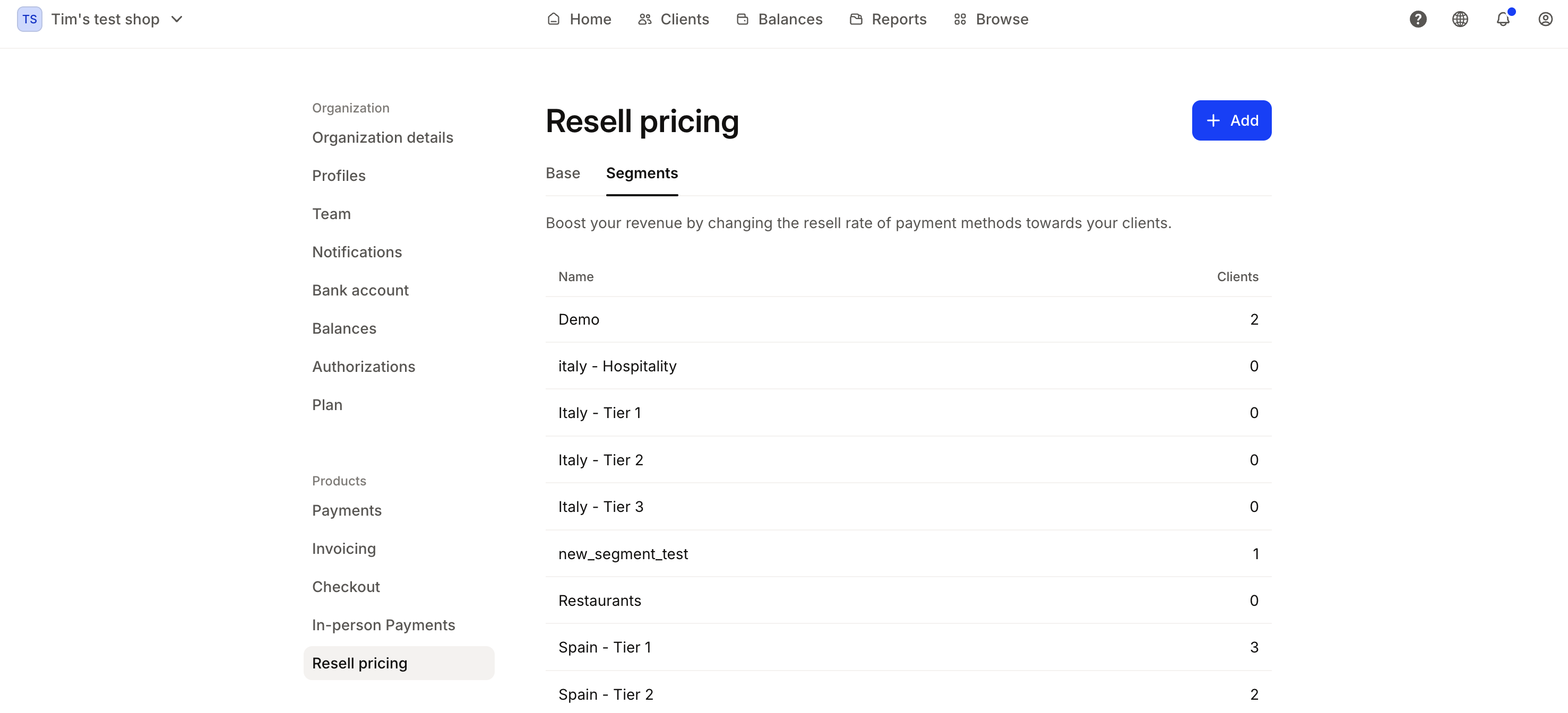
In the Segments tab, you can:
-
See the full list of segments, including Name and Clients (number of users) per segment.
-
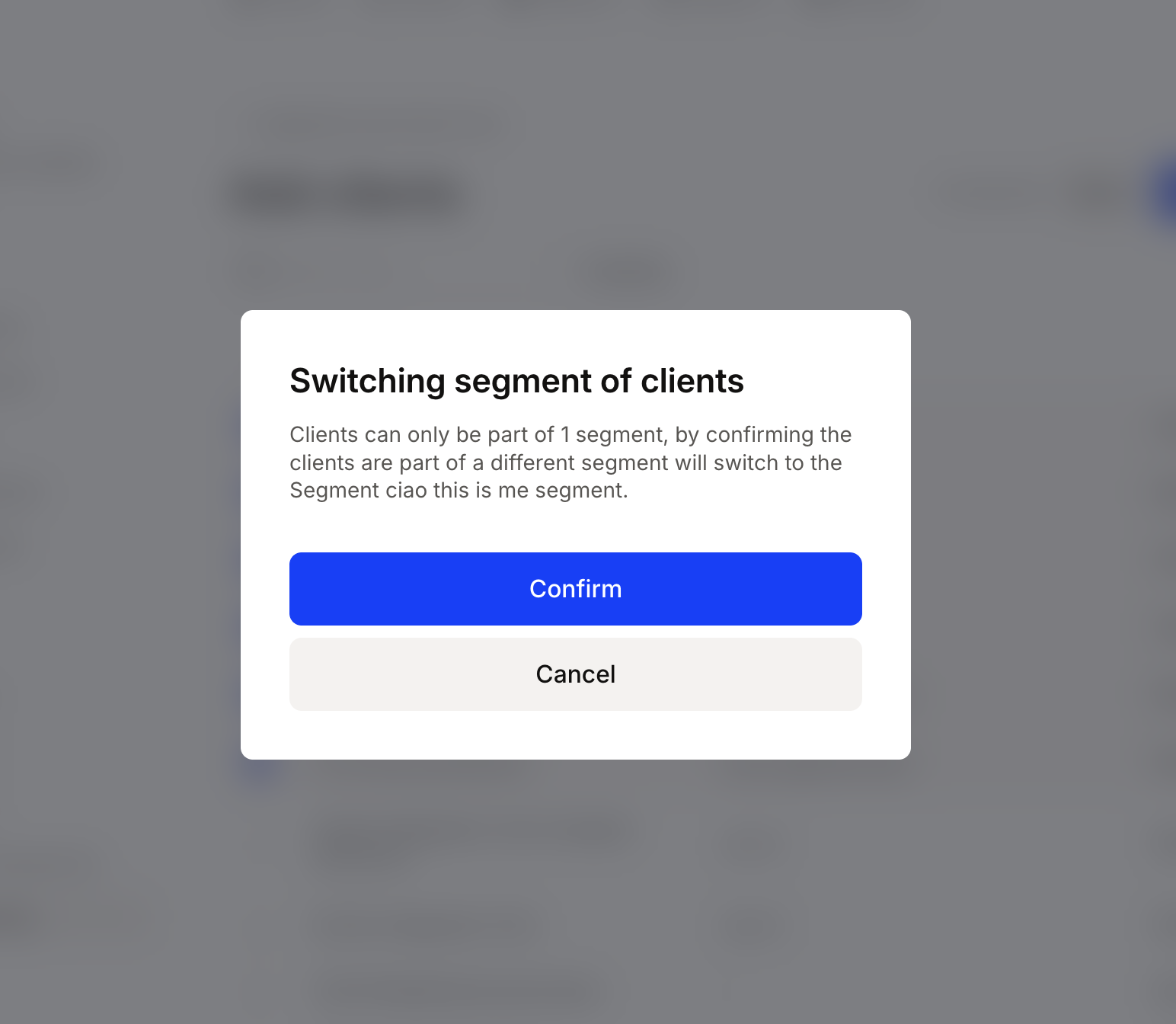
Add clients: assign new customers to specific segments or reassign existing ones. If a client is already in another segment, a confirmation dialog asks you to confirm the move.
- Delete clients: remove one or multiple customers from a segment.
- Search clients: search by Name or ID, with filtering by country.
- See the rates per segment: view the list of available payment methods and their rates per segment.
- Set rates: set segment-specific resell rates that override the base resell rate. Unless you set a distinct price for a specific method within a segment, the base rates apply by default.
- Add new segments: create new segments.
- Update segment names: rename segments.
Some things to consider:
- Partners are responsible for properly setting up and maintaining their customer segmentation.
- A single customer can be assigned to only one segment at a time.
- Segments remain hidden from customers and can only be managed by the partners.
Set VAT rates for segments
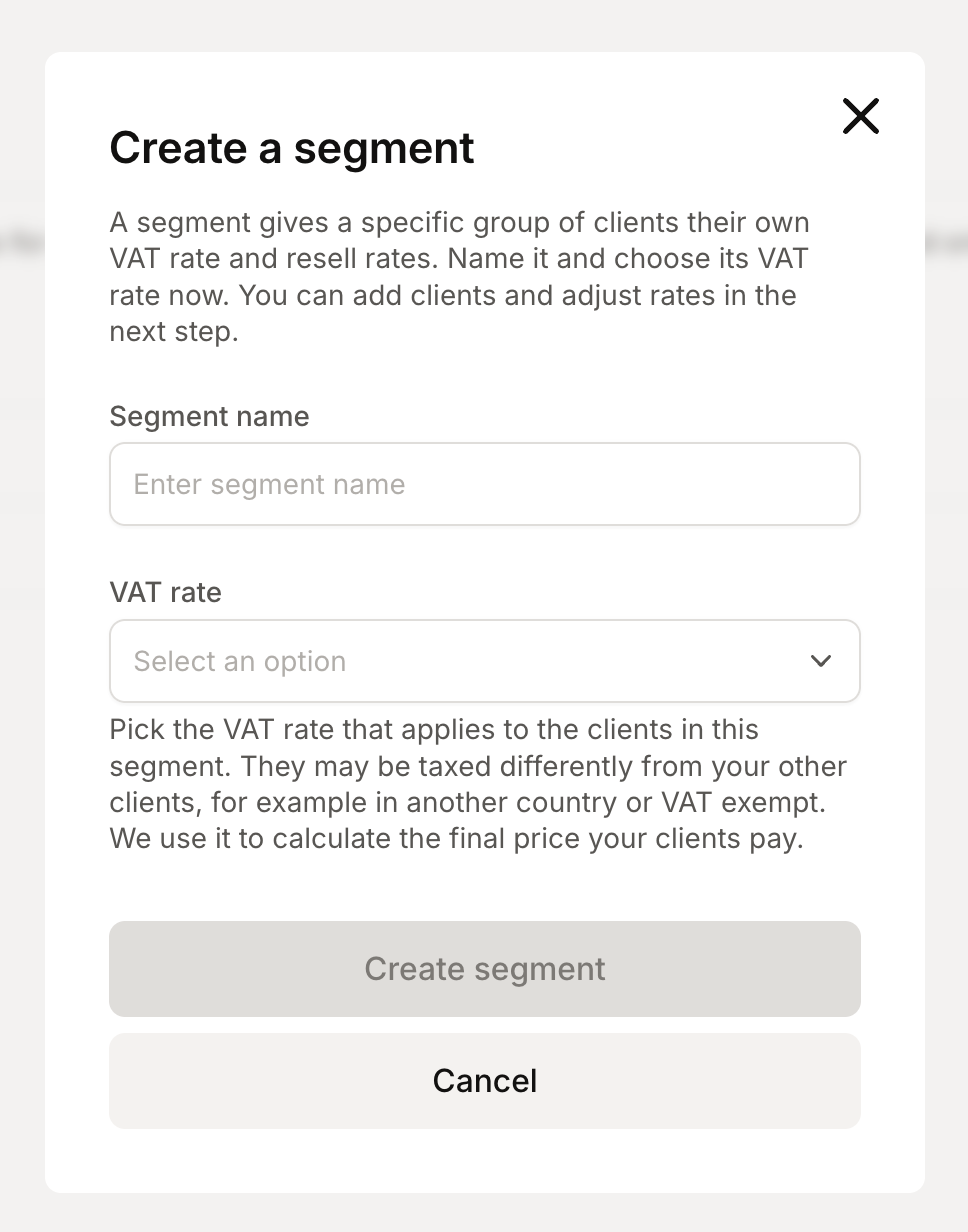
When you create a segment, you must define its VAT rate.
Segment rates inherit the VAT-exclusive base prices. Resell pricing adds VAT on top using the segment's VAT rate and rounds VAT amounts to two decimal places using Banker's rounding.
Example
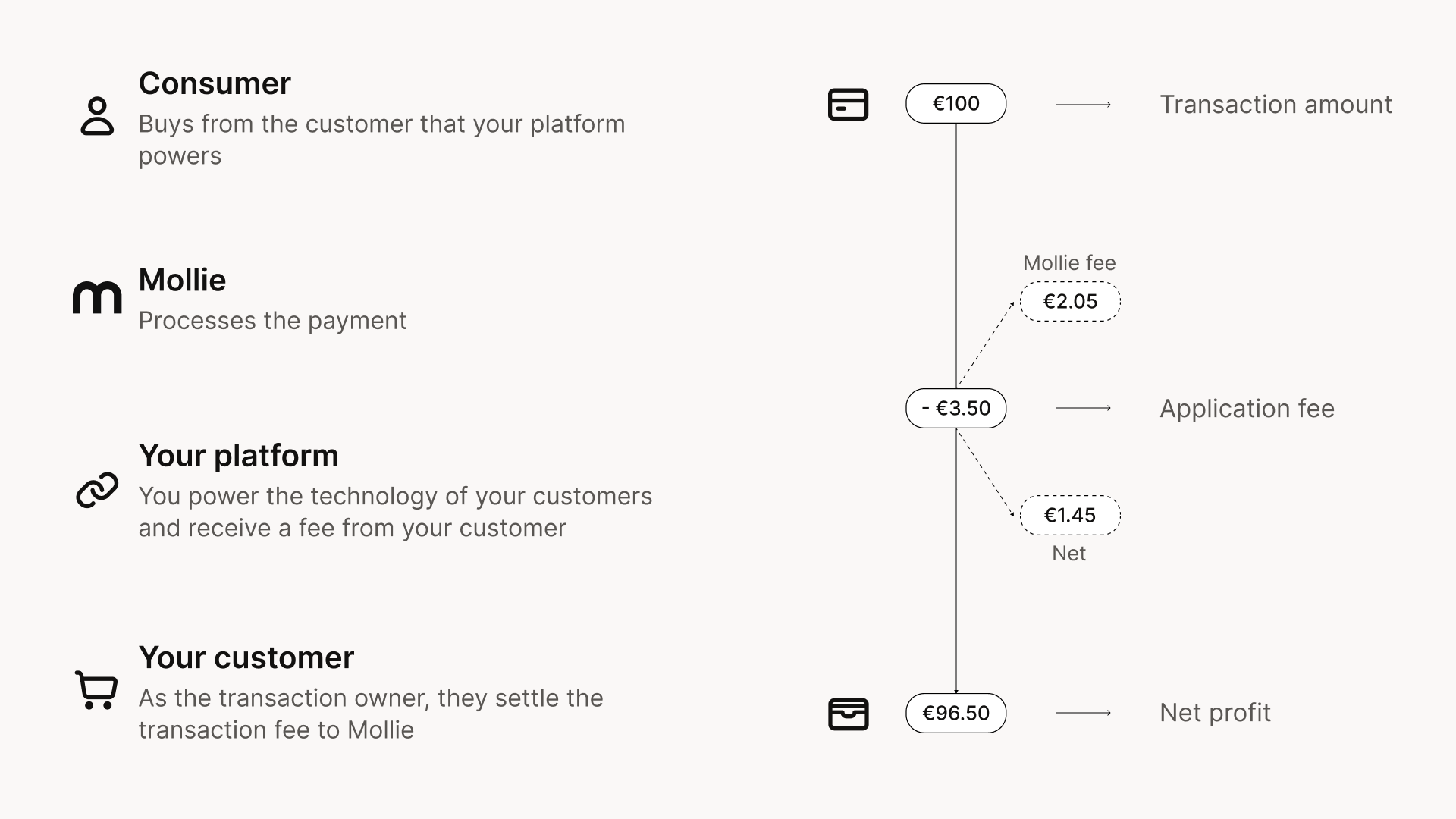
Say your partner set a rate for a Maestro Debit Domestic Consumer card as:
- Buy rate of
0.25€+1.80%. - Resell rate of
0.50€+3.00%.
The margin is then automatically computed at 0.25€ + 1.20%.
Multi-currency
Resell Pricing applies within the primary currency of your Mollie account. If your platform processes payments in multiple currencies, Resell Pricing does not automatically apply to payments made in currencies other than your primary balance currency.
If you operate across multiple currencies, feel free to contact your Mollie partner manager to discuss the right approach for your volume profile or commercial model.
If you need to override Resell Pricing for a specific payment, you can do so by passing a custom
applicationFeeon the payment: Application Fees always take precedence over Resell Pricing.
Updated 5 days ago