
Reassigning terminals
If your business grows or changes its structure, you may need to move a terminal to a different profile or organisation. Reassigning a terminal changes which profile it belongs to, so payments taken on the device are settled against the right business profile. This guide explains how reassignment works, what changes when you do it, and how to move a terminal between your organisations.
How it works
Every terminal is linked to a single profile, and that link determines where its payments are reported and settled. When you move a terminal to a different profile, Mollie doesn't simply update the existing record - the original terminal is deleted and a new terminal is created in its place.
This matters for two reasons:
- The terminal gets a new terminal ID and is linked to a new profile ID. The previous IDs stop working.
- Any integration that stores the old terminal ID or profile ID needs to be updated with the new values, or payments to that terminal will fail.
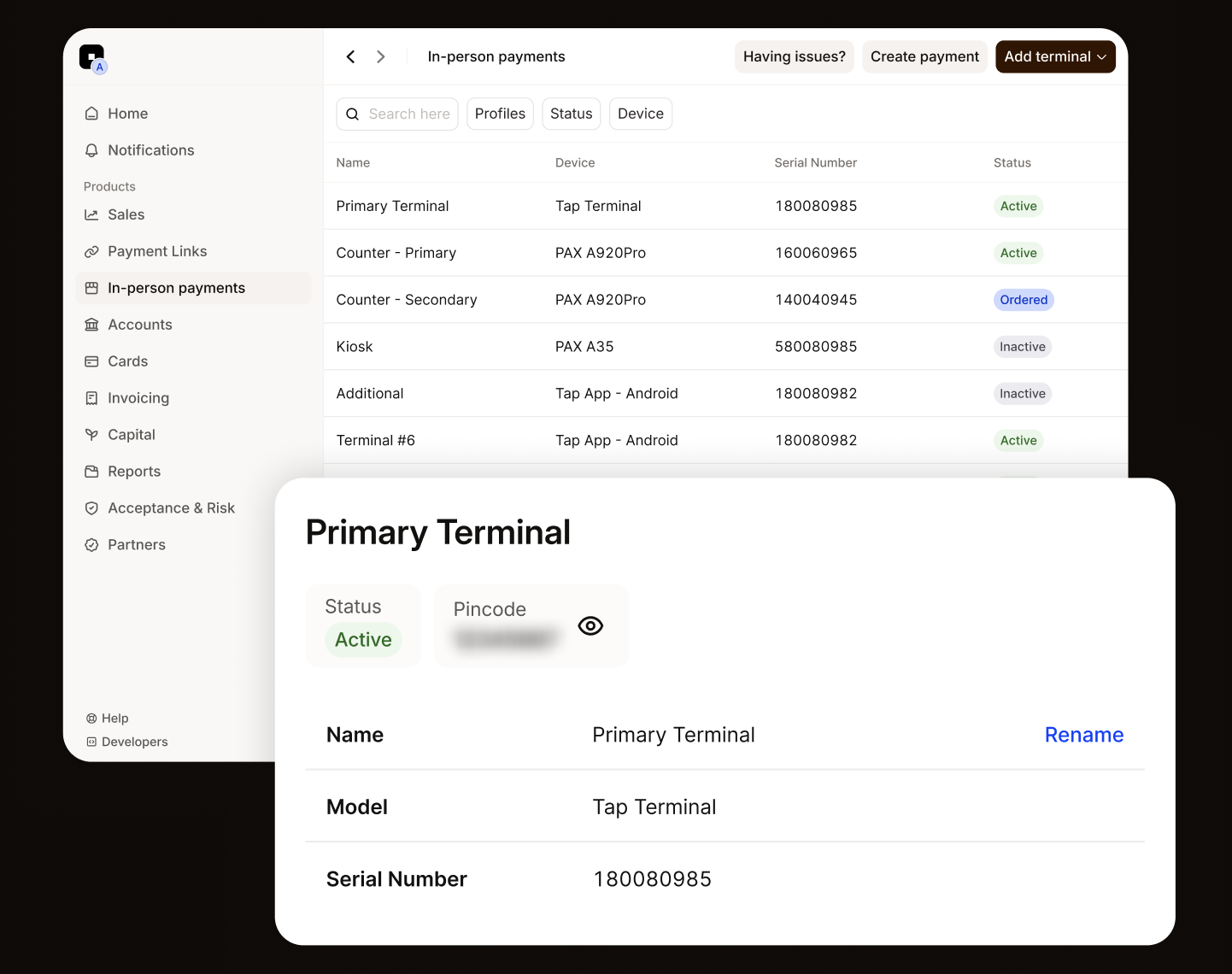
If you only take payments through the Mollie Dashboard, there's nothing extra to do. If you or your developer create payments through the Terminals API, update your stored IDs after reassigning. You can find the new values on the terminal's detail page in your Mollie Web App.
Reassign a terminal to a different profile
You can move a terminal to another profile within the same organisation yourself from your Mollie Web App:
- In the Mollie Dashboard, go to In-person payments.
- Select the terminal you want to reassign.
- Go to Settings at the top of your screen.
- Click Reassign.
- Choose the profile you want to assign the terminal to, then confirm.
Once confirmed, the terminal is recreated against the new profile. From that point on, all payments on the device are reported under the new profile, and the terminal appears under that profile in your Web App.
Transactions taken before the move stay with the original profile. Reassigning a terminal doesn't move its payment history.
Move a terminal to a different organisation
To move a terminal between your organisations, contact Mollie Support as the terminal needs to be fully reset.
Provide us with the terminal's serial number, organisation it's currently linked to and the Mollie ID of the organisation you want to move it to. We will re-onboard the device and confirm once it's ready to accept payments again.
Because the terminal is set up fresh, it receives a new terminal ID and profile ID, the same as any other reassignment.
Make sure to update your integration with the new values once the reassignment is complete.
Terminals managed by a platform
If your terminal was supplied or activated through a platform or partner, it's a platform-managed device and can't be reassigned outside that platform's ecosystem. To change where a managed device is assigned, contact your platform provider.
Updated 20 days ago