
Orders API overview
Don't use the Orders API. It's deprecated.Please refer to the Payments API instead.
The Orders API allows you to use Mollie for your order management.
For each order in your shop, you can create an order via the Mollie API. The order will remain valid for a certain amount of time (default 28 days).
Just as a regular payment, the order will have a _links.checkout property where you can redirect your customer to pay for the order. For each attempt to pay, a payment object is created. If the customer pays for the order, the order will transition to the paid state (or authorized in case of Klarna payment methods).
Should the initial payment fail, the order remains in the created state so that your customer can try to pay again. This can be done using a dedicated link available through the Web app which you can share with your customer, or you can create an additional payment on the order via the API.
Once you ship the goods to your customer, you should inform Mollie of the shipments via the API or via the Web app. This is mandatory for pay-after-delivery methods. Only shipped amounts will be settled to your account.
The following payment methods require the Orders API and cannot be used with the Payments API:
- Pay after delivery payment methods, such as Klarna Pay later, Klarna Slice it and Billie
- Klarna Pay now
- Eco vouchers, gift vouchers, and meal vouchers
How does the Orders API work?
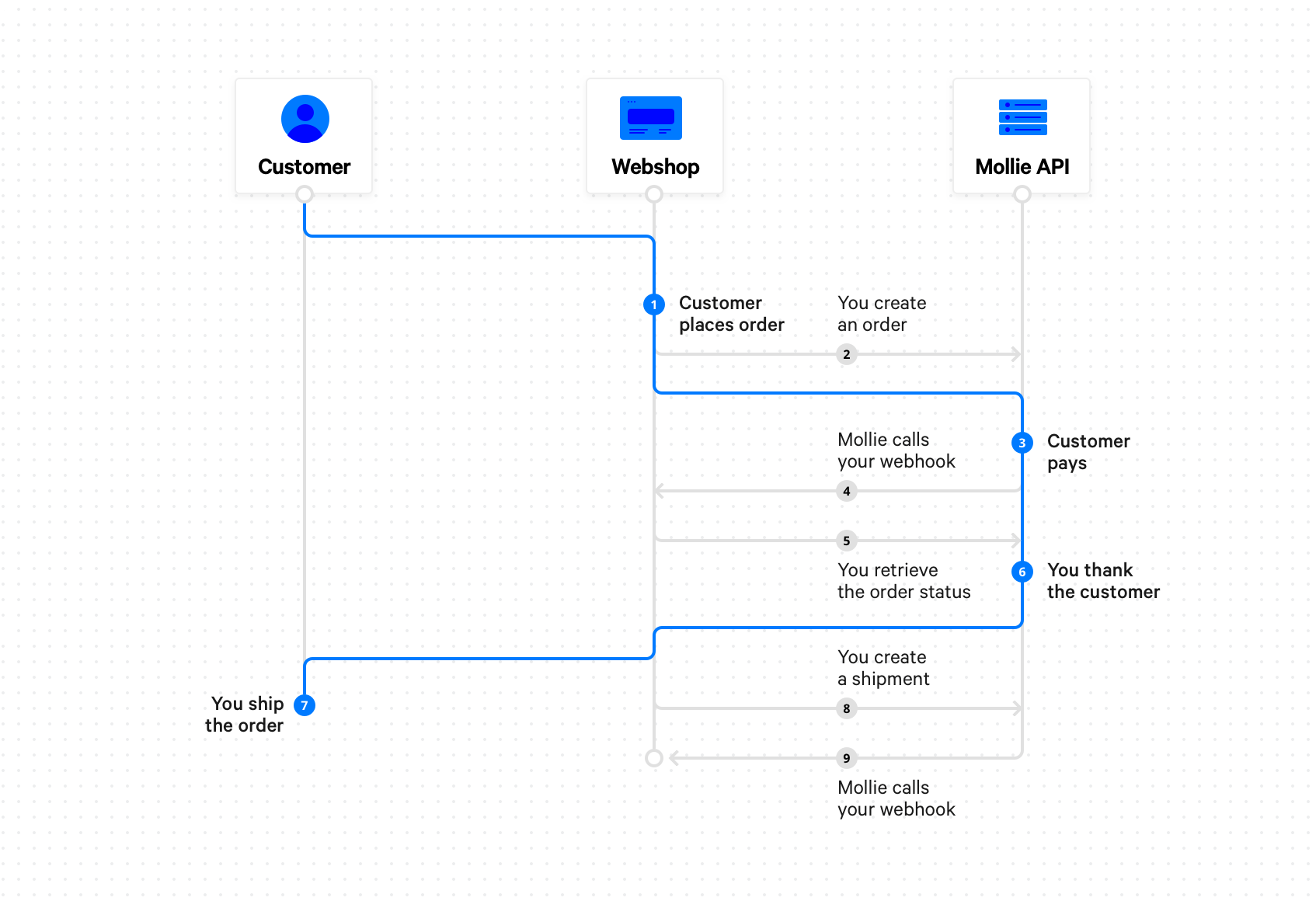
- A customer on your webshop decides to checkout.
- For every order in your webshop, you create an order using the Create order endpoint.
- The Create order endpoint response contains the
_links.checkoutproperty. This is a link where you should redirect your customer to for checking out. - If the checkout is successful, the order will change its state to
authorizedorpaid, depending on the payment method used by your customer.
We will use webhooks to inform your back office of the order state change.
- Processing the webhook request your website fetches the order status using the Mollie API. This fetched status serves to mark the payment paid, trigger fulfilment and send out an email confirmation to the customer.
- At this point Mollie returns the visitor to your website using the
redirectUrlspecified when the order was created. Your website already knows the payment was successful and thanks the customer. - When the order is
paidorauthorizedyou can ship the order to your customer. - Once you start shipping the order, you should send the shipment information to Mollie using the Create shipment endpoint. Alternatively, you can use the Mollie Web app. You should ship the order within 28 days or the order will expire.
For some payment methods, shipping is required to ensure you will be settled for the full order amount.
We will use webhooks to inform your back office that a shipment was created.
- Processing the webhook request your website fetches the order status using the Mollie API. You can check if a shipment has created and process this in your own system, if desired.
Cancel order lines
If there are some lines in the order you will not ship, you can cancel them using the Cancel order lines endpoint if they are authorized or you can create refunds if the lines are already paid.
Order expiry
An order expires after 28 days. Any authorizations on the order will be released. You can check the expiresAt property on the order or in the Mollie Web app to see when the order expires exactly.
Orders status changes
Orders and order lines can go through a number of different statuses. First we will discuss the difference between two possible flows for orders. After that we will list all the possible statuses for both orders and order lines.
Two flows: authorized and paid
There are basically two different flows for an order, depending on the payment method that is used to pay the order.
Authorized
Some payment methods support authorizations. This means that a consumer can authorize a payment, but it will not be executed immediately. It will give us all the needed information to process the payment at a later point. This execution is called a capture.
If the payment method supports authorizations, the consumer will authorize a payment when the order is created. If the authorization is successful, the order will have status authorized.
Each time a shipment is created, we will automatically execute a capture too. The shipment can be for the whole order or for only a part of the order. Only the amount that is shipped will be captured.
Paid
If a payment method does not support authorizations, the payment will be paid immediately when the order is created. You can create shipments for these orders just like in the authorized flow, but it will not have any effect on the payment.
Possible statuses for orders
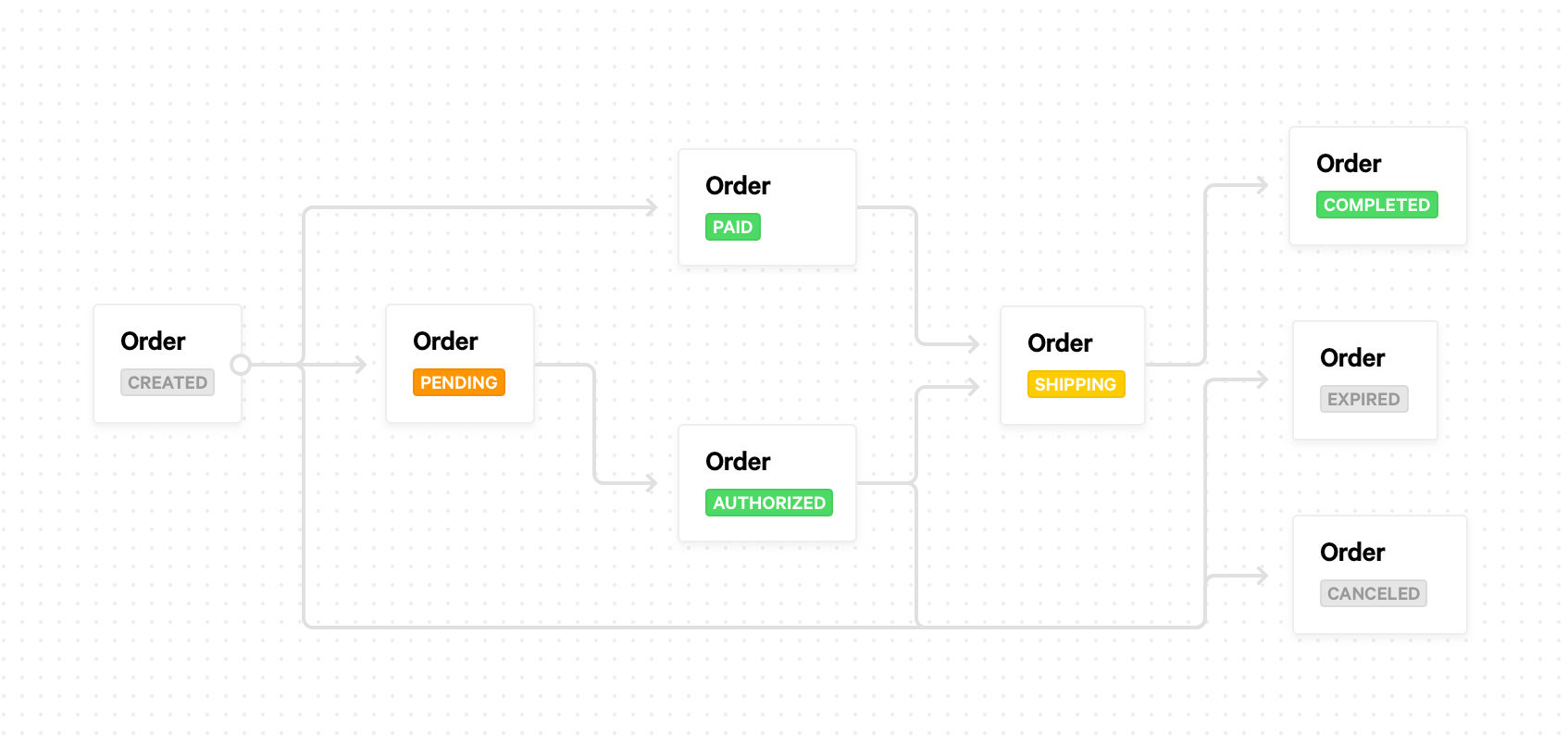
The following diagram shows how one order status leads to another:
created
createdThe order has been created, but nothing else has happened yet.
- This is not a status Mollie will call your webhook for.
- All order lines will also be in the
createdstate.- Can transition to:
paid,pending,authorized,expiredandcanceled.
paid
paidThe order status will be set to this status when the order’s payment is successfully completed with a payment method that does not support authorizations.
- Mollie will call your webhook when the order reaches this state.
- All order lines will also be in the
paidstate.- Can transition to:
shippingandcompleted.
pending
pendingIt is possible that the payment supplier will manually check an order. In that case we will set the order to this status. It can take a couple of days before the order is set to another status. Currently only Klarna Pay now, Klarna Pay later and Klarna Slice it use this status.
- This is not a status Mollie will call your webhook for.
- All order lines will be
created.- Can transition to:
authorizedandcreated.
authorized
authorizedIf the order’s payment is successfully completed with a payment method that does support authorizations, the order is set to this status. The money will only be transferred once a shipment is created for the order. Currently only Klarna Pay now, Klarna Pay later and Klarna Slice it use this status.
- Mollie will call your webhook when the order reaches this state.
- Order lines can be in the state
authorizedorcanceled. Not all lines arecanceled.- Can transition to:
shipping,canceledandexpired.
shipping
shippingThe order will move into this state when you start shipping your first order line or part of an order line. When the order is in this state, it means that you still have some order lines that are not shipped yet.
- This is not a status Mollie will call your webhook for.
- Order lines can be in the states
paid,authorized,shipping,completedorcanceled. At least one line should be in statepaidorauthorizedand at least one other line should be in stateshippingorcompleted.- Can transition to:
completed.
completed
completedWhen all order lines are completed or canceled, the order will be set to this status. At least one line should be completed. If all lines are canceled, the status of the order will change to
canceledinstead.
- Mollie will call your webhook when the order reaches this state.
- Order lines can be in the state
completedorcanceled. At least one line should becompleted.- This is a final state, the order cannot transition to another state.
canceled
canceledWhen all order lines are canceled, the order is also set to canceled.
- Mollie will call your webhook when the order reaches this state.
- All order lines will also be in the
canceledstate.- This is a final state, the order cannot transition to another state.
Orders can only be canceled by the merchant, not by the shopper. Use the Cancel order endpoint or cancel the order from the the Mollie Web app.
expired
expiredBy default, the expiry period of an order is 28 days. If no payment is initiated for an order within the given expiry period, the order will expire. When an order is paid using a payment method that supports authorizations, the order has to be completed within the given expiry period.
Note: the default expiry period of 28 days might change in the future.
- Mollie will call your webhook when the order reaches this state.
- All order lines will be
canceled.- This is a final state, the order cannot transition to another state.
Possible statuses for order lines
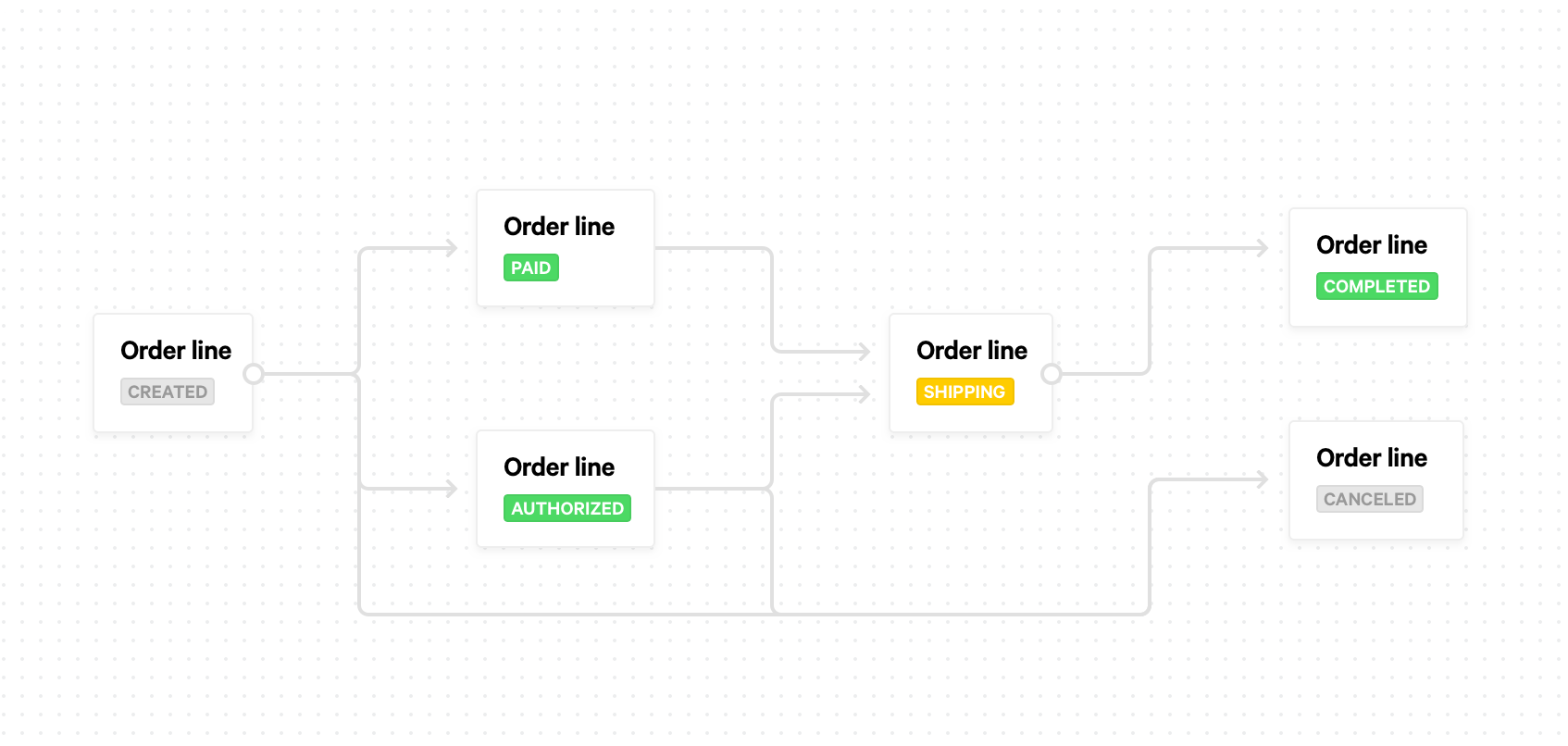
The following diagram shows how one order line status leads to another:
created
createdThe order line has been created, but nothing else has happened yet.
- The order has status
createdorpending.- Can transition to:
paid,authorizedandcanceled.- Only the whole order can be canceled at this point in time, not individual order lines.
paid
paidThe order line will be set to this status when the order’s payment is successfully completed with a payment method that does not support authorizations.
- The order has status
paidorshipping.- Can transition to:
shipping.
authorized
authorizedIf the order’s payment is successfully completed with a payment method that does support authorizations, the order lines are set to this status. The money will only be transferred once a shipment is created for the order line. Currently only Klarna Pay now, Klarna Pay later and Klarna Slice it use this status.
- The order has status
authorizedorshipping.- Can transition to:
shippingorcanceled.
shipping
shippingThe order line will move into this status when you ship only a part of the order line. If you ship the complete order line, the status will move to
completedimmediately.
- The order has status
shipping.- Can transition to:
completed.
completed
completedWhen the order line is completely shipped, it will get this status. The order line will also get this status when it is partially shipped and the rest of the line is
canceled.
- The order has status
shippingorcompleted.- This is a final state, the order line cannot transition to another state.
canceled
canceledWhen the complete order line is canceled, the line gets this status. If only part of the order line is canceled, the status will stay at its previous status. Only merchants can cancel orders and order lines, the consumer cannot do this.
- The order has status
authorized,shipping,completed,expiredorcanceled.- This is a final state, the order cannot transition to another state.
Need more info on managing or refunding your orders? Check out How do I cancel change or refund an order and Refunds.
Handling discounts
Using the Orders API you can pass the full details of your customers’ orders to Mollie. Of course, in some cases you might want to give the customer a discount. This document describes how you can pass various types of discounts and promotions.
2-for-1 type promotions
You may want to offer 2-for-1 type promotions, or other promotions where the customer gets a certain percentage off if they buy multiple units of the same product. In such cases, your customer gets some part of the order line for free.
You can do this using the discountAmount property on the lines array.
Here’s an example of an order line that has a 2-for-1 type promotion:
[
    {
        "name": "LEGO City Monster Truck 60180 Building Kit",
        "type": "physical",
        "unitPrice": {
            "currency": "EUR",
            "value": "19.99"
        },
        "vatRate": "21.00",
        "quantity": 2,
        "totalAmount": {
            "currency": "EUR",
            "value": "19.99"
        },
        "discountAmount": {
            "currency": "EUR",
            "value": "19.99"
        },
        "vatAmount": {
            "currency": "EUR",
            "value": "3.47"
        }
    }
]
Note how the VAT is only calculated over the amount actually charged to your customer.
NoteIf you want to partially cancel, ship or refund an order line with a non-zero
discountAmount, you will have to pass theamountparameter too. See the Partial discounts section for an explanation and an example.
Gift cards
If Mollie does not handle your gift cards for you, you can add an additional line of the type gift_card instead if your customer wants to apply a gift card. The line must then have a negative amount.
Here’s an example where a shopper exchanges a €10.00 gift card:
[
    {
        "name": "LEGO City Monster Truck 60180 Building Kit",
        "type": "physical",
        "unitPrice": {
            "currency": "EUR",
            "value": "19.99"
        },
        "vatRate": "21.00",
        "quantity": 2,
        "totalAmount": {
            "currency": "EUR",
            "value": "39.98"
        },
        "vatAmount": {
            "currency": "EUR",
            "value": "6.94"
        }
    },
    {
        "name": "€ 10 VVV Gift card",
        "type": "gift_card",
        "unitPrice": {
            "currency": "EUR",
            "value": "-10.00"
        },
        "vatRate": "0.00",
        "quantity": 1,
        "totalAmount": {
            "currency": "EUR",
            "value": "-10.00"
        },
        "vatAmount": {
            "currency": "EUR",
            "value": "0.00"
        }
    }
]
As a gift card is simply a means of payment and is untaxed, this does not affect the VAT amount charged to your customer.
Discounts and vouchers
If your customer exchanges a voucher that gives a certain discount in your store, you may want to apply a negative value-added tax to the discount.
Here is an example where a shopper uses a discount code for 10% off:
[
    {
        "name": "LEGO City Monster Truck 60180 Building Kit",
        "type": "physical",
        "unitPrice": {
            "currency": "EUR",
            "value": "19.99"
        },
        "vatRate": "21.00",
        "quantity": 2,
        "totalAmount": {
            "currency": "EUR",
            "value": "38.98"
        },
        "vatAmount": {
            "currency": "EUR",
            "value": "6.94"
        }
    },
    {
        "name": "HERFST10 voucher code",
        "type": "discount",
        "unitPrice": {
            "currency": "EUR",
            "value": "-3.90"
        },
        "vatRate": "21.00",
        "quantity": 1,
        "totalAmount": {
            "currency": "EUR",
            "value": "-3.90"
        },
        "vatAmount": {
            "currency": "EUR",
            "value": "-0.68"
        }
    }
]
Make sure you use the same VAT rate for the discount as you use for other products in the order.
If you have multiple VAT rates in your order (e.g., the order contains both low and high rate VAT products), and you want to use discounts, make sure that if you sum the VAT per rate, none of the sums go below zero. In that case, it may be necessary to add multiple discount lines, one for each VAT rate used in the order.
Any orders with a negative total VAT amount will be rejected by the Mollie API.
Read more on accepting vouchers as a payment method in our article on Vouchers.
Partial discounts
In most cases, canceling, shipping or refunding orders is quite straightforward. You specify which order lines you want to act on and the quantity of each line you want to act on. Amounts are determined automatically by Mollie.
However, when partially canceling, shipping or refunding an order line that has a non-zero discountAmount, you will have to pass the amount parameter as well, as Mollie cannot automatically determine the amount you intended to cancel, ship or refund.
To put this into perspective, let us show an example of shipping the 2-for-1 promotion as mentioned above, in two steps.
When shipping the first item, we will have to decide whether we want to apply the discount as part of this shipment, partly apply the discount, or not apply the discount to this shipment.
This means that the amount parameter that we can pass has to be between €0.00 and €19.99:
amount €0.00
amount €0.00Fully apply the discount as part of the first shipment. As a result, this unit will be shipped for free. The second item will have to be shipped for the full price.
amount €5.00
amount €5.00Partially apply the discount. As a result, you will have to apply €14.99 discount as part of the next shipment.
amount €19.99
amount €19.99Do not apply the discount as part of this shipment. As a result, you will have to apply the full discount as part of the next shipment.
Updated 1 day ago