---
updatedAt: 2026-09-15T01:02:22.000Z
---
Fetch the complete documentation index at: https://docs.mollie.com/llms.txt. Use this file to discover all available pages before exploring further. Append .md to any documentation page URL to get its markdown version.
# Magento 2: Set up your payment options
Increase conversion by offering an express payment option with enhanced security that reduces cart abandonment by speeding up checkout, and that gives you access to a global market.
## Display the Apple Pay button
Display the Apple Pay button on your cart, checkout, and product pages:
1. Log in to Magento 2.
2. Go to **Stores** > **Configuration**.
3. Expand the **Mollie** section in the left side-bar, and select **Payment methods**.
4. In the **Apple Pay** section, select **Direct** from the **Integration type** drop-down menu.
5. Save the changes.
## Set up point-of-sale payments
Enhance payment speed, accuracy, and security by combining Mollie with POS terminals.
### Connect with terminals
1. [Order a point-of-sale device](https://www.mollie.com/products/payments-terminal).
2. Choose a customer group to show the POS terminals:
* Log in to Magento 2.
* Go to **Stores** > **Configuration**.
* Expand the **Mollie** section in the left side-bar, and select **Payment** **methods**.
* Select **Point of Sale (POS)**.
* Select one or more [customer groups](https://experienceleague.adobe.com/docs/commerce-admin/customers/customer-groups.html?lang=en)↗ from the Payment from applicable customer groups drop-down menu.
* If you haven't already added POS to your checkout, select **Yes** from the **Enabled** drop-down menu.
* Save the changes.
The store automatically displays the connected terminals in a drop-down menu to the selected customer groups.
## Set up credit/debit cards
### What you need to do in advance
* [Add credit/debit cards](https://docs.mollie.com/docs/cards) to your checkout.
### Enable Mollie Components
1. Log in to Magento 2.
2. Go to **Stores** > **Configuration**.
3. Expand the **Mollie** section in the left side-bar, and select **Payment methods**.
4. Scroll to **Credit card**.
5. From the **Use Mollie Components** drop-down menu, select **Yes**.
6. Save the changes.
### Enable one-click payments
1. Log in to Magento 2.
2. Go to **Stores** > **Configuration**.
3. Expand the **Mollie** section in the left side-bar, and select **Payment methods**.
4. Scroll to **Credit card**.
5. Select **Yes** from the **Enable single-slick payments** drop-down.
6. Save the changes.
### Split payment authorization and capture
Authorize customer payments and capture funds separately to have more control over your store's cash flow management.
1. Log in to Magento 2.
2. Go to **Stores** > **Configuration**.
3. On the **Configuration** page, expand the **Mollie** and select **Advanced**.
4. Select **Yes** from the **Manual capture** drop-down menu.
5. Save the changes.
### Set up bank transfers
Customize the amount of time customers have to pay with a bank transfer.
By default, when customers pay with a bank transfer, they have a 14-day period (12 business days + 2 grace days) to transfer the amount.
1. Log in to Magento 2.
2. Go to **Stores** > **Configuration**.
3. Expand the **Mollie** section in the left side-bar, and select **Payment methods**.
4. Select the **Bank transfer** payment method.
5. Enter the number of days in the **Days to expire** field.
6. Save the changes.
## Set up vouchers
You need to [activate Vouchers](https://help.mollie.com/hc/en-us/articles/360017180279-How-do-I-activate-vouchers-as-a-payment-method) first to enable this payment method.
[Vouchers](https://docs.mollie.com/docs/vouchers) are mostly used as an *employee benefit* (given by employers to employees) to purchase ecological goods and services.
To use vouchers as a payment method, you first need a contract with the brand(s) you want to accept (e.g *Sodexo Belgium* for [Lunch Pass](https://www.sodexo.com/en/brands-services/food/services)) and then activate them in your [Mollie Web app](https://my.mollie.com/dashboard/login?lang=en):
1. Enter your `contract ID` and enable the brand(s) you want to provide.
2. Once activated in Mollie, you need to enable them in your Magento shop's configuration.
Vouchers are only available as a payment method via the [Orders API ](https://docs.mollie.com/reference/orders-api) since these can only be used for eligible products. You should include the `lines.category` parameter for all your order lines and we will calculate the eligible amount based on this parameter.
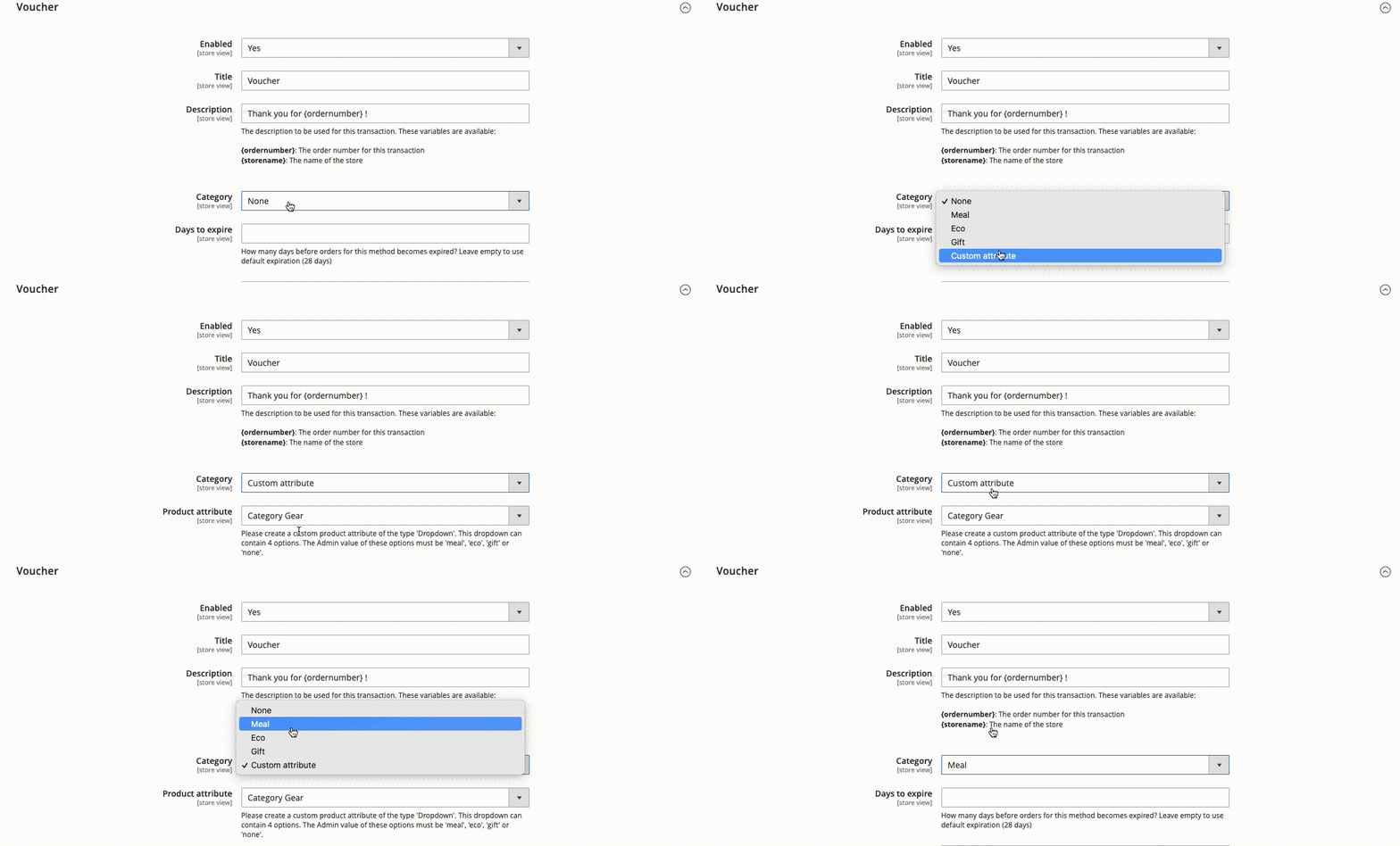
You can choose between [meal, eco, or gift vouchers](https://www.mollie.com/payments/meal-eco-gift-vouchers) or a custom `attribute` where you can connect your product attribute to the type `Dropdown`. Using this custom attribute, you can easily enrich the voucher type per product in case *meal*, *eco*, and *gift* options are not sufficient.
Refunds are currently not possible for vouchers.
## Add a payment surcharge
Offset any additional costs or fees associated with processing a payment method by adding a payment surcharge.
Check your local legislation before adding a payment surcharge.
### Add a fixed surcharge
Add a fixed surcharge for larger orders, where a percentage-based surcharge may become disproportionately high.
1. Log in to Magento 2.
2. Go to **Stores** > **Configuration**.
3. Expand the **Mollie** section in the left side-bar, and select **Payment methods**.
4. Select the payment method that you want to configure.
5. Select **Fixed fee** from the **Payment surcharge** drop-down menu.
6. Enter an amount in the **Payment surcharge fixed amount** field.
7. If you want the payment fee to be taxable, select an option from the **Payment surcharge tax class** drop-down menu.
The options available depend on your store's [tax settings](https://experienceleague.adobe.com/docs/commerce-admin/stores-sales/site-store/taxes/taxes.html?lang=en)↗.
8. Save the changes.
### Add a percentage-based surcharge
Add a percentage surcharge for smaller orders, where a fixed surcharge may be relatively high.
1. Log in to Magento 2.
2. Go to **Stores** > **Configuration**.
3. Expand the **Mollie** section in the left side-bar, and select **Payment methods**.
4. Select the payment method that you want to configure.
5. Select **Percentage** from the **Payment surcharge** drop-down menu,
6. Enter a percentage In the **Payment surcharge percentage** field.
7. Optional: Enter a fixed amount for the maximum surcharge in the **Payment surcharge limit** field,.
8. If you want the payment fee to be taxable, select an option from the **Payment surcharge tax class** drop-down menu.
The options available depend on your store's [tax settings](https://experienceleague.adobe.com/docs/commerce-admin/stores-sales/site-store/taxes/taxes.html?lang=en)↗.
9. Save the changes.
### Add a combined surcharge
Add a combination of both fixed and percentage-based surcharges to cover the fixed costs associated with payment processing as well as a proportionate surcharge based on the order value.
1. Log in to Magento 2.
2. Go to **Stores** > **Configuration**.
3. Expand the **Mollie** section in the left side-bar, and select **Payment methods**.
4. Select the payment method that you want to configure.
5. Select **Fixed fee and percentage** from the **Payment surcharge** drop-down menu.
6. Enter an amount in the **Payment surcharge fixed amount** field.
7. Enter a percentage In the **Payment surcharge percentage** field.
8. Optional: Enter a fixed amount for the maximum surcharge in the **Payment surcharge limit** field.
9. Save the changes.
### Include shipping in the surcharge
By default, the surcharge is calculated on the order subtotal. However, you can configure Mollie for Magento 2 to calculate the surcharge based on the order subtotal and the shipping cost:
1. Log in to Magento 2.
2. Go to **Stores** > **Configuration**.
3. On the **Configuration** page, expand the **Mollie** and select **Advanced**.
4. Select **Yes** from the **Include shipping in Surcharge calculation** drop-down menu.
5. Save the changes.